How to enable wifi calling on iPhone: setup guide and benefits
Last Updated
Oct 19, 2026
Published On
Jul 03, 2026
 510
510
Table of Contents
Imagine this: you are having an important finance-related call with one of your clients, and suddenly the call is disconnected midway. You will feel anxious, desperate to close the deal, and then you find out you have poor connectivity. A potential client is gone, and frequent call disruptions also leave a negative mark on your reputation.
So, how to counter this? Can it be prevented before? Yes, it can.
For iPhone users, there is a built-in solution you may not be aware of. It is called WiFi calling. Using WiFi calling, you can transform your “no network coverage area” into a fully functional connectivity hub.
WiFi calling is free, automatic, and completely enhances how you make calls. If you are wondering how to enable wifi calling iPhone and how it works, this blog is for you.
Let’s get started…
📌 Key Takeaways
- Wi-Fi calling on iPhone refers to making or receiving calls via a Wi-Fi network instead of using a cellular network.
- To enable wifi calling on your iPhone, you should have a network provider that supports this feature and a stable wifi connection.
- Open the Settings app, tap Cellular Services, select your cellular line, and toggle Wi-Fi Calling to enable it on your iPhone.
- Improved indoor coverage, fewer dropped calls, and better audio quality, even in weak signal, are some of the key benefits of Wi-Fi calling.
- Common Wi-Fi calling problems include Wi-Fi calling not turning on and being unable to receive calls over Wi-Fi.
What is Wi-Fi calling on iPhone?
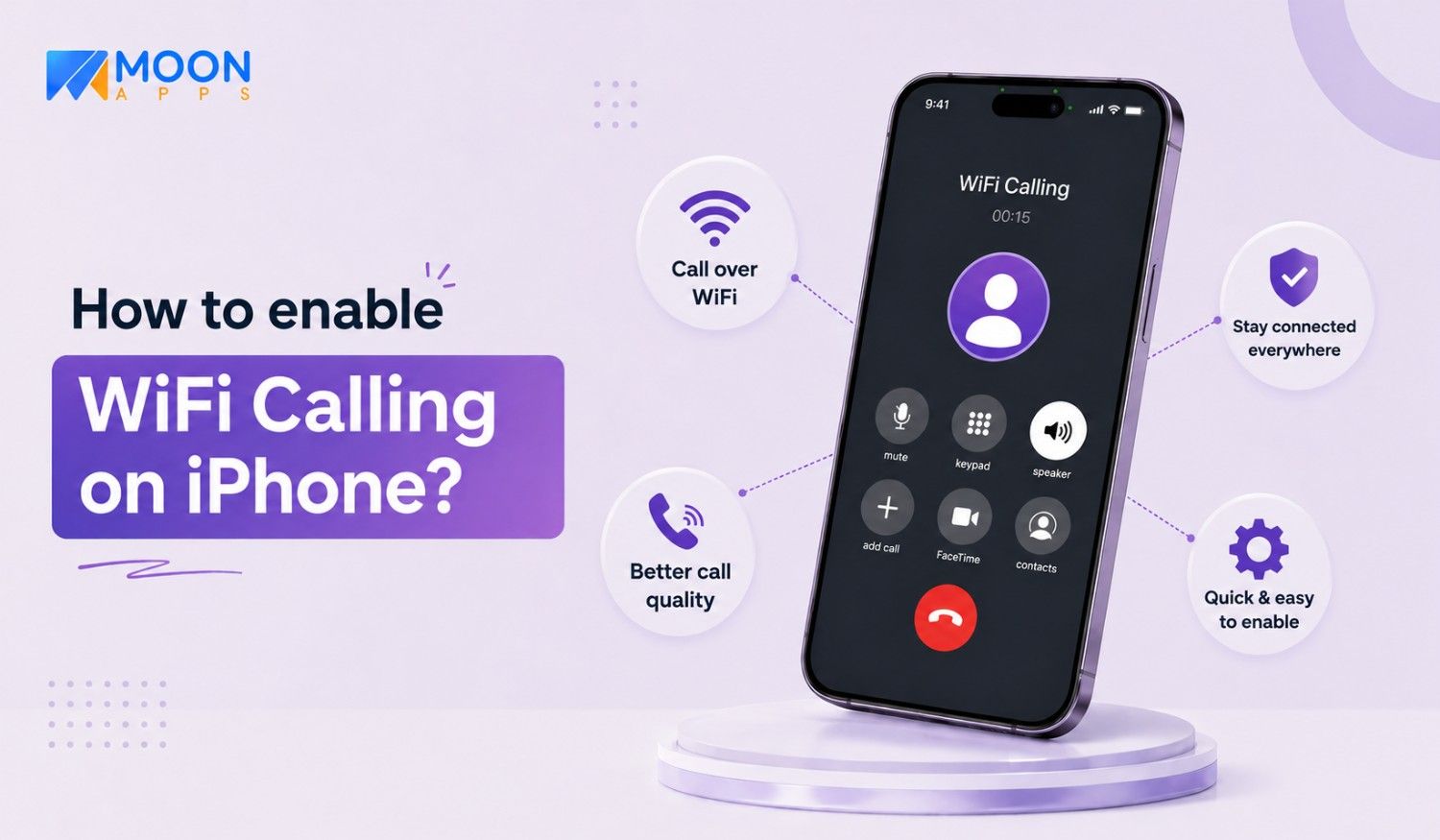
Wi-Fi Calling on iPhone is a calling feature that lets you make and receive phone calls over a Wi-Fi connection instead of relying solely on your cellular network. It uses your internet connection to route voice calls. This way, you stay connected even when mobile signal strength is weak or unavailable.
Simply, we can say, WiFi calling turns your existing wifi network into a personal cell tower. When your iPhone receives weak signals in a basement, indoors, or in a remote location, you can use Wi-Fi calling, which connects to the available Wi-Fi network in your area to keep your calls going without interruption.
In Wifi calling, the receiver doesn’t necessarily need a Wi-Fi calling-enabled feature. They can use their existing cellular network, and the calling experience will remain similar to a regular phone call.
Facing constant disruptions with your cellular signal?
Switch to a VoIP calling app for uninterrupted sales communication with your clients without stressing over cellular signal.
Try Moon Dialer Now
Requirements before enabling wifi calling on iPhone
Even though you have an iPhone, there are a few things to consider before enabling Wi-Fi calling. Here they are:
- A carrier that supports Wi-Fi calling: Not every network provider offers Wi-Fi calling, so you need to verify that it actually supports it before enabling it.
- A stable Wi-Fi network connection: Having a Wi-Fi connection alone won’t help with Wi-Fi calling; it needs to be stable and fast. Without a stable connection, you may face voice breaking, noisy background sound, etc.
- An active SIM or eSIM plan: Make sure you have a registered, active SIM or eSIM to enable Wi-Fi calling. Even though wifi will be used for calls, it still needs to be verified with the SIM.
- A compatible iPhone with the latest iOS: Your iPhone must support Wi-Fi calling. From iPhone 5c onward, all the newer models support Wi-Fi calling. You also need to make sure you are using the latest iOS version so that your iPhone has the most recent carrier settings.
- A valid emergency address information: Emergency services like 911 find it very difficult to track your location when you turn on WiFi calling. This is why the iPhone manufacturer and network providers need a proper physical address for emergency routing during setup.
How to turn on wifi calling on iPhone?
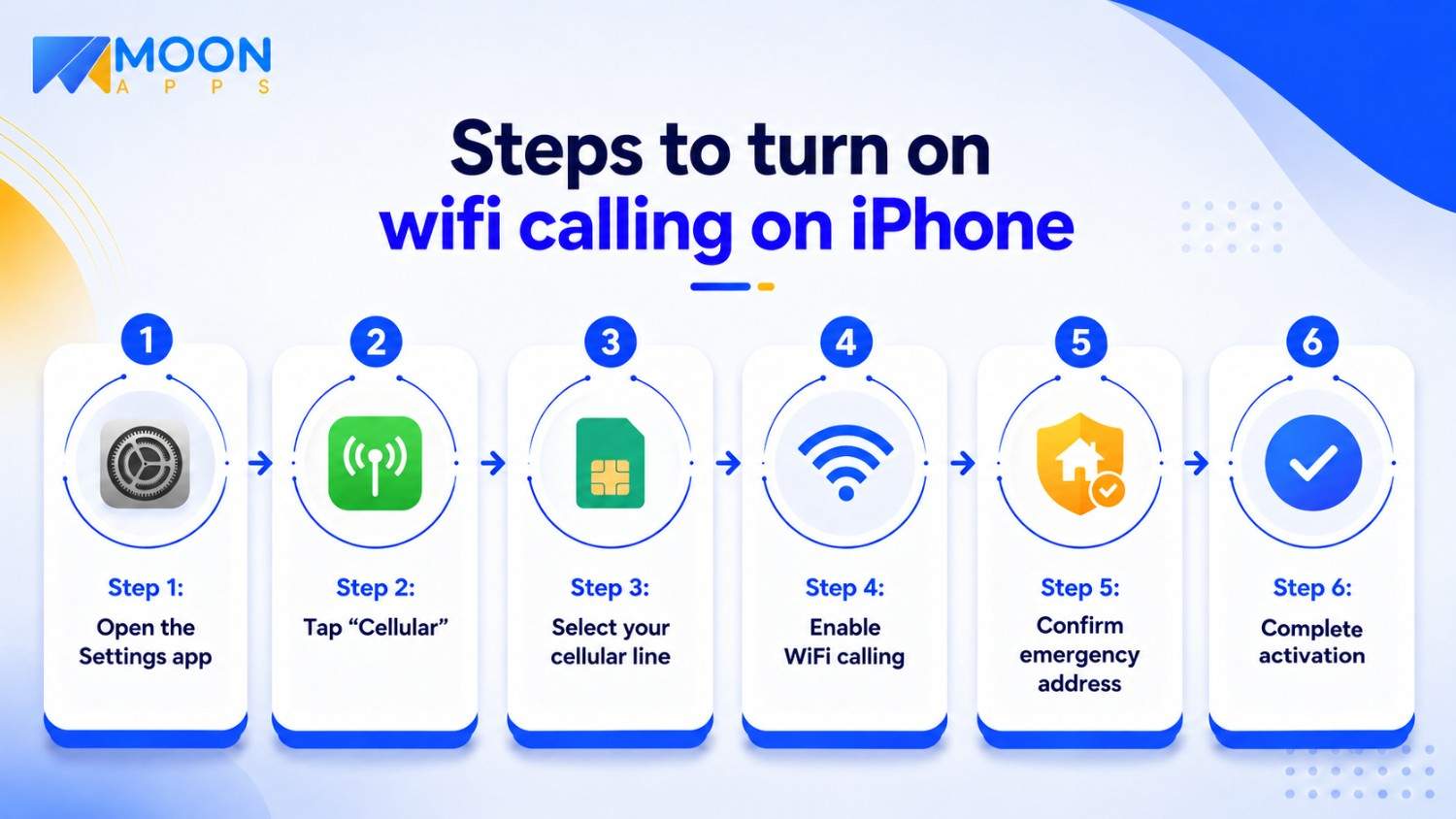
To turn on wi fi calling on an iPhone, you only need to follow a few simple steps as mentioned below.
Step 1: Open the Settings app
On your iPhone, open the Settings app either from your home screen or your app library. This is where you’ll find the options to manage your phone, network, and calling features, including WiFi Calling.
Step 2: Tap “Cellular”
In the Settings app, tap Cellular to access your mobile network settings. Here, you’ll find options related to your SIM or eSIM, including WiFi Calling.
Step 3: Select your cellular line
If your iPhone has more than one cellular line (SIM or eSIM), tap the line you want to use for WiFi Calling. If you have only one line, you can skip this step and continue.
Step 4: Enable WiFi calling
After selecting your cellular line (if applicable), tap Wi-Fi Calling and turn on Wi-Fi Calling on this iPhone by toggling the switch.
Your iPhone may display information explaining how Wi-Fi Calling works and what information may be shared with your carrier. Review the details and tap Enable or Continue if prompted.
Step 5: Confirm your emergency address
In the United States, carriers require an E911 emergency address for Wi-Fi Calling. If prompted, enter or confirm your emergency address so first responders can locate you during an emergency call made over Wi-Fi.
Review the information carefully before saving your changes.
Step 6: Complete activation
After confirming your emergency address, your carrier will activate Wi-Fi Calling on your iPhone. Activation is usually completed within a few moments, although it may take a little longer depending on your carrier.
Once activated, your iPhone can automatically use Wi-Fi to make and receive calls whenever cellular coverage is weak or unavailable.
Pro Tip
To verify that your iPhone WiFi calling is active, check the status bar at the top of your iPhone’s screen. When your calls are using Wi-Fi, you’ll typically see your carrier name followed by “Wi-Fi” (for example, AT&T Wi-Fi or Verizon Wi-Fi). This indicates your iPhone is ready to place calls over Wi-Fi when needed.
How to do wifi calling on iPhone?
Once your wifi calling is enabled, you can use it right from the word go. There is no need to download a new application or install software to fully operate. It seamlessly integrates with your daily workflow.
Here is how you can do wifi calling in your day-to-day workflow:
1. Make calls using the default calling app
Just like you make calls from the default calling app (before enabling wifi calling), you can do the same. Open the default calling app on your iPhone, select a contact you want to call, or dial a number. Now, your iPhone will determine which is the most efficient path to route the call, i.e., Wi-Fi or cellular.
The receiver doesn’t need to enable wifi calling on their device.
2. Stay connected in low-signal areas
Wi-Fi calling is a potential lifesaver in locations where cellular reception is poor or unavailable. For example, you are entering an office building or a warehouse with a weak signal strength. In this case, if you have wifi calling enabled, your iPhone can use available Wi-Fi networks to maintain call functionality.
Wifi calling reduces your chances of missing calls due to poor cellular coverage.
3. Use your primary number while traveling
With Wi-Fi calling, you don’t need to change your phone number when traveling internationally. You can make and receive calls using your regular phone number, even from abroad, as long as you are connected to a WiFi network. This is the convenience and flexibility that Wi-Fi calling provides when cellular service is limited.
Benefits of iPhone Wi-Fi calling
Enabling wifi calling on your iPhone has multiple benefits. Let’s explore them one by one.
- Calls are less likely to disconnect even indoors. Basement buildings or rural areas lack connectivity, and signal quality is generally poor. In such locations, when you turn Wi-Fi calling on, you can use available Wi-Fi networks, and calls will be consistent throughout.
- Improves audio quality even with weak signal strength. Doesn’t matter whether your cellular signal is poor or unavailable; you can still maintain clear voice communication as your iPhone uses available Wi-Fi connections when the cellular signal is weak.
- Provides seamless integration with iPhone features. As wifi calling is a built-in feature, no new downloads or configurations are required. It works directly with iPhone’s default calling app, and users can place and receive calls just like regular phone calls.
- Keeps you reachable even in poor weather conditions. Heavy storms or lightning may create electronic interference and can damage cell towers. This may result in mobile networks being unavailable for days. However, with wifi calling on, if you connect to a wifi network, you will be able to call and receive important calls.
- Business calls remain uninterrupted throughout the day. For professionals who regularly deal with international clients over the phone, a poor cellular signal can adversely affect their business. But when wi fi calling is enabled, calls are less likely to disconnect because they use the nearby Wi-Fi connection.
Limitations of Wi-Fi calling
Even though there are significant benefits to Wi-Fi calling, there are some limitations as well. Let’s explore them all.
- Necessary to have a stable wifi connection. Wi-Fi calling quality depends entirely on the stability of the Wi-Fi network. If it is slow, congested, or unstable, you may experience poor audio quality. (in extremely slow networks).
- Not all network providers support wifi calling. In the U.S., some carriers do not offer WiFi calling, while others do, depending on your cellular plan, network settings, and region. Even when WiFi calling is available on your iPhone, some users may not be able to use it depending on their network provider.
- WiFi calling may not work on every wifi network. Highly secure Wi-Fi networks, such as government Wi-Fi, school Wi-Fi, or other restricted networks, may block services required for Wi-Fi calling. You may be connected to a wifi network, but calls may not connect successfully.
Common WiFi calling problems and how to fix them
Wi-Fi calling is a built-in iPhone feature, but some users may encounter issues that can interrupt their calls. Here is a list of common problems and their quick fixes.
1. Wi-Fi calling option is missing
If you can’t find the Wi-Fi Calling option in your iPhone settings, it usually means the feature isn’t available on your device or account. This is one of the most common issues users face when trying to enable Wi-Fi Calling for the first time.
Reason why it may happen:
This can happen if your carrier doesn’t support Wi-Fi Calling, your iPhone is running an outdated version of iOS, or you’re using an older device that doesn’t support the feature. In some regions, Wi-Fi Calling may also be unavailable due to carrier restrictions.
2. Wi-Fi calling is not turning on
Sometimes, the Wi-Fi Calling toggle appears in Settings but refuses to activate. This can happen because of temporary software issues, carrier activation delays, or account-related settings.
Reason why it may happen:
The feature may fail to turn on due to incorrect account settings, pending carrier activation, or temporary software glitches on your iPhone. In some cases, an outdated carrier settings update can also prevent activation.
3. Calls aren’t using Wi-Fi
Even after enabling Wi-Fi Calling, your iPhone may continue placing calls over the cellular network. It often happens when the device detects a stronger cellular signal or Wi-Fi Calling hasn’t been activated correctly.
Reason why it may happen:
Your iPhone may prioritize the cellular network if the signal is strong enough. It can also occur if Wi-Fi Calling hasn’t been activated properly or your Wi-Fi connection is unstable.
4. Unable to receive calls over Wi-Fi
In some cases, outgoing calls work normally, but incoming calls fail to ring over Wi-Fi. This issue is often linked to temporary carrier outages or unstable internet connectivity.
Reason why it may happen:
Temporary carrier service disruptions or interruptions in your Wi-Fi connection can prevent incoming calls from reaching your iPhone. Network-related issues may also interfere with Wi-Fi Calling until the connection is restored.
Quick troubleshooting checklist for Wi-Fi calling issues:
It does not matter whether your Wi-Fi isn’t turning on or has issues receiving Wi-Fi calls; you can get rid of them using our expert-recommended checklist. Below is the checklist to keep in mind.
- Restart your iPhone.
- Update to the latest iOS version.
- Check & confirm whether your network provider and cellular plans support wifi calling.
- Connect your iPhone to a high-speed, stable Wi-Fi network.
- Confirm that the Wi Fi calling open switch is enabled in your cellular settings.
- Turn Airplane Mode on and off, then reconnect to Wi-Fi to test the feature.
- If the issue persists, contact your carrier to verify that Wi-Fi Calling is enabled on your account.
Following these troubleshooting steps will resolve most of your wifi calling problems and help you make or receive calls over wifi.
Stuck in a cellular dead zone?
Download the Wi-Fi calling solution to auto-dial your customers while maintaining continuous, high-quality audio lines even in no-network areas.
Get Started with Moon Dialer
Overcome calling hassles with a SIM-free calling solution
So far, we know Wi-Fi calling helps you make and receive calls over a Wi-Fi network when cellular coverage is weak or unavailable. For that, what you need is a reliable Wi-Fi calling solution, or in other words, a SIM-free calling solution.
Moon Dialer, a VoIP and WiFi calling app, is designed to facilitate your business communications. With features like call recording, call forwarding, auto-call scheduling, and call disposition, it makes international calling a breeze. What’s amazing is its QR-based calling. A feature that helps others connect with you instantly without revealing their number.
Sounds interesting? Click here to explore Moon Dialer now.
FAQs
To enable Wi-Fi calling on iPhone 17, go to Settings > Cellular (or Mobile Service) > Select your SIM > Tap Wi-Fi Calling > Toggle the switch to ON. Your network provider or carrier must support wifi calling to enable this feature.
To use Wi-Fi calling in workplaces, first toggle it on from your device’s settings. Once wifi calling is on, you can connect to your company’s wifi network to use it. Make sure your company’s firewall doesn’t affect it, or else calls can be interrupted midway.
The most common reasons Wi-Fi calling isn’t working on your iPhone are disabled settings, outdated carrier software, or network restrictions. If you are consistently experiencing Wi-Fi calling issues, you can use a reliable dialing app instead, such as Moon Dialer, which helps you make and receive calls over Wi-Fi seamlessly.
Yes, wifi calling is a built-in feature and is free to use for all iPhone users. However, depending on your carrier, location, and where you are calling from, there might be additional charges.
No, there is no need to turn off cellular data to use wifi calling. iPhones are designed to prioritize Wi-Fi over cellular data. Whenever the cellular signal drops, the iPhone can automatically route calls over an available wifi network without relying on cellular data.
Share Article: